mirror of
https://github.com/fergalmoran/flameshot.git
synced 2025-12-22 09:51:06 +00:00
 56ff36a77f
* Deb packaging

* Deb packaging

* Deb packaging

* Update readme to Qt 6 (except Fedora yet)

* RPM

* Deb suggests

* Deb

* RPM

* RPM

* RPM

* Jammy patch

* Test jammy patch

* Revert "Jammy patch"

This reverts commit 640196666e57b409ef6d79681a0d0cbe44ccf73d.

* Revert "Test jammy patch"

This reverts commit bebff73e6c03ec435ec4878723302fa31370083a.

* Deb control: Alternative Build-Depends

* Fix RPM for KDSingleApplication

* Add build dependency libgl-dev explicit for Jammy (it is included for newer versions automatically)

* Add build dependency qt6-l10n-tools explicit for Jammy (it is included for newer versions automatically)

* Update DEB rules removing not needed files like in RPM .spec (663a056)

* DEB rules: Remove empty folders from package

* Add kguiaddon for Fedora and Arch

* DEB rules: Remove empty lib folder from package

* DEB rules: Remove include and lib folder from package

* Add missing dependencies
580 lines
26 KiB
Markdown
580 lines
26 KiB
Markdown
<div align="center">
|
|
<p>
|
|
<h1>
|
|
<a href="https://github.com/flameshot-org/flameshot">
|
|
<img src="data/img/app/org.flameshot.Flameshot.svg" alt="Flameshot" />
|
|
</a>
|
|
<br />
|
|
Flameshot
|
|
</h1>
|
|
<h4>Powerful yet simple to use screenshot software.</h4>
|
|
</p>
|
|
<p>
|
|
<a href="https://github.com/flameshot-org/flameshot/actions?query=workflow%3APackaging%28Linux%29">
|
|
<img src="https://img.shields.io/github/actions/workflow/status/flameshot-org/flameshot/Linux-pack.yml?branch=master&label=gnu%2Flinux" alt="GNU/Linux Build Status" />
|
|
</a>
|
|
<a href="https://github.com/flameshot-org/flameshot/actions?query=workflow%3APackaging%28Windows%29">
|
|
<img src="https://img.shields.io/github/actions/workflow/status/flameshot-org/flameshot/Windows-pack.yml?branch=master&label=windows" alt="Windows Build Status" />
|
|
</a>
|
|
<a href="https://github.com/flameshot-org/flameshot/actions?query=workflow%3APackaging%28MacOS%29">
|
|
<img src="https://img.shields.io/github/actions/workflow/status/flameshot-org/flameshot/MacOS-pack.yml?branch=master&label=macos" alt="MacOS Build Status" />
|
|
</a>
|
|
<a href="https://flameshot.org/docs/installation/development-build/">
|
|
<img src="https://img.shields.io/badge/nightly%20builds-available-%23AA00FF" alt="Nightly Build" />
|
|
</a>
|
|
<a href="https://github.com/flameshot-org/flameshot/releases">
|
|
<img src="https://img.shields.io/github/release/flameshot-org/flameshot.svg" alt="Latest Stable Release" />
|
|
</a>
|
|
<a href="https://github.com/flameshot-org/flameshot/releases">
|
|
<img src="https://img.shields.io/github/downloads/flameshot-org/flameshot/total.svg" alt="Total Downloads" />
|
|
</a>
|
|
<a href="https://github.com/flameshot-org/flameshot/blob/master/LICENSE">
|
|
<img src="https://img.shields.io/github/license/flameshot-org/flameshot.svg" alt="License" />
|
|
</a>
|
|
<a href="https://hosted.weblate.org/engage/flameshot/">
|
|
<img src="https://hosted.weblate.org/widgets/flameshot/-/flameshot/svg-badge.svg" alt="Translation status" />
|
|
</a>
|
|
<a href="https://flameshot.org">
|
|
<img src="https://img.shields.io/github/release/flameshot-org/flameshot.svg?label=docs" alt="Docs" />
|
|
</a>
|
|
<br>
|
|
<a href="https://snapcraft.io/flameshot">
|
|
<img alt="Get it from the Snap Store" src="https://snapcraft.io/static/images/badges/en/snap-store-black.svg" />
|
|
</a>
|
|
<a href="https://flathub.org/apps/details/org.flameshot.Flameshot">
|
|
<img height="60" alt="Download on Flathub" src="https://flathub.org/assets/badges/flathub-badge-en.svg"/>
|
|
</a>
|
|
</p>
|
|
</div>
|
|
|
|
|
|
|
|
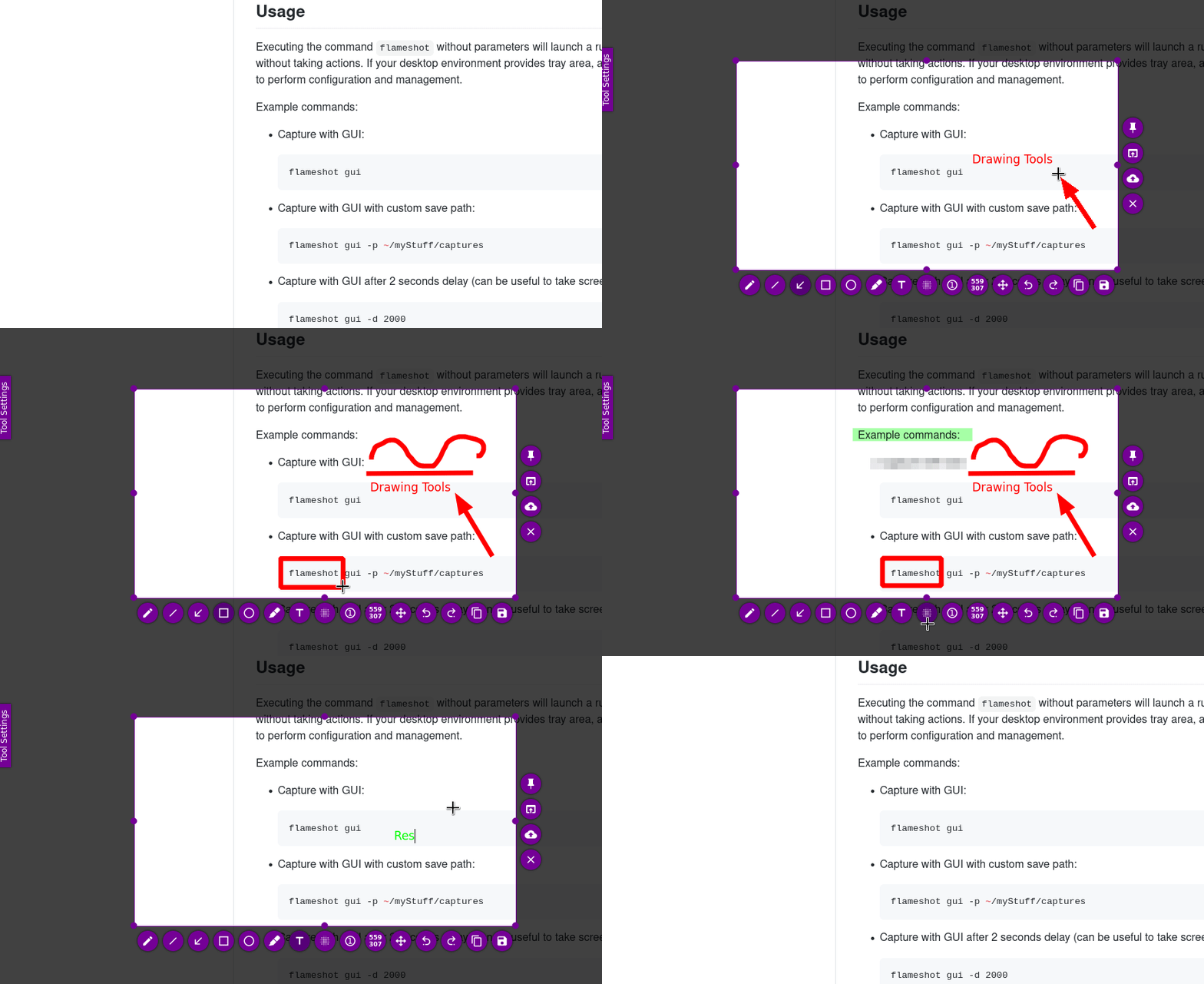
## Preview
|
|
|
|
|
|
|
|
## Index
|
|
|
|
- [Features](#features)
|
|
- [Usage](#usage)
|
|
- [CLI configuration](#cli-configuration)
|
|
- [Config file](#config-file)
|
|
- [Keyboard Shortcuts](#keyboard-shortcuts)
|
|
- [Local](#local)
|
|
- [Global](#global)
|
|
- [On KDE Plasma desktop](#on-kde-plasma-desktop)
|
|
- [On Ubuntu](#on-ubuntu-tested-on-2204)
|
|
- [On XFCE 4](#on-xfce-4)
|
|
- [On Fluxbox](#on-fluxbox)
|
|
- [Considerations](#considerations)
|
|
- [Installation](#installation)
|
|
- [Prebuilt Packages](#prebuilt-packages)
|
|
- [Packages from Repository](#packages-from-repository)
|
|
- [MacOS](#macos)
|
|
- [Windows](#windows)
|
|
- [Compilation](#compilation)
|
|
- [Dependencies](#dependencies)
|
|
- [Compile-time](#compile-time)
|
|
- [Run-time](#run-time)
|
|
- [Optional](#optional)
|
|
- [Debian](#debian)
|
|
- [Fedora](#fedora)
|
|
- [Arch](#arch)
|
|
- [Build](#build)
|
|
- [Install](#install)
|
|
- [License](#license)
|
|
- [Privacy Policy](#privacy-policy)
|
|
- [Code Signing Policy](#code-signing-policy)
|
|
- [Contribute](#contribute)
|
|
- [Acknowledgment](#acknowledgment)
|
|
|
|
## Features
|
|
|
|
- Customizable appearance.
|
|
- Easy to use.
|
|
- In-app screenshot editing.
|
|
- DBus interface.
|
|
- Upload to Imgur.
|
|
|
|
## Usage
|
|
|
|
Executing the command `flameshot` without parameters will launch a running
|
|
instance of the program in the background without taking actions.
|
|
If your desktop environment provides tray area, a tray icon will also
|
|
appear in the tray for users to perform configuration and management.
|
|
|
|
Example commands:
|
|
|
|
- Capture with GUI:
|
|
|
|
```shell
|
|
flameshot gui
|
|
```
|
|
|
|
- Capture with GUI with custom save path:
|
|
|
|
```shell
|
|
flameshot gui -p ~/myStuff/captures
|
|
```
|
|
|
|
- Capture with GUI after 2 seconds delay (can be useful to take screenshots of mouse hover tooltips, etc.):
|
|
|
|
```shell
|
|
flameshot gui -d 2000
|
|
```
|
|
|
|
- Fullscreen capture with custom save path (no GUI) and delayed:
|
|
|
|
```shell
|
|
flameshot full -p ~/myStuff/captures -d 5000
|
|
```
|
|
|
|
- Fullscreen capture with custom save path copying to clipboard:
|
|
|
|
```shell
|
|
flameshot full -c -p ~/myStuff/captures
|
|
```
|
|
|
|
- Capture the screen containing the mouse and print the image (bytes) in PNG format:
|
|
|
|
```shell
|
|
flameshot screen -r
|
|
```
|
|
|
|
- Capture the screen number 1 and copy it to the clipboard:
|
|
|
|
```shell
|
|
flameshot screen -n 1 -c
|
|
```
|
|
|
|
In case of doubt choose the first or the second command as shortcut in your favorite desktop environment.
|
|
|
|
A systray icon will be in your system's panel while Flameshot is running.
|
|
Do a right click on the tray icon and you'll see some menu items to open the configuration window and the information window.
|
|
Check out the About window to see all available shortcuts in the graphical capture mode.
|
|
|
|
### Usage on Windows
|
|
|
|
On Windows, `flameshot.exe` will behave as expected for all supported command-line arguments,
|
|
but it will not output any text to the console. This is problematic if, for example, you are
|
|
running `flameshot.exe -h`.
|
|
|
|
If you require console output, run `flameshot-cli.exe` instead. `flameshot-cli.exe` is a minimal wrapper around `flameshot.exe` that ensures all stdout is captured and output to the console.
|
|
|
|
### CLI configuration
|
|
|
|
You can use the graphical menu to configure Flameshot, but alternatively you can use your terminal or scripts to do so.
|
|
|
|
- Open the configuration menu:
|
|
|
|
```shell
|
|
flameshot config
|
|
```
|
|
|
|
- Show the initial help message in the capture mode:
|
|
|
|
```shell
|
|
flameshot config --showhelp true
|
|
```
|
|
|
|
- For more information about the available options use the help flag:
|
|
|
|
```shell
|
|
flameshot config -h
|
|
```
|
|
|
|
### Config file
|
|
|
|
You can also edit some of the settings (like overriding the default colors) in the configuration file.\
|
|
Linux path: `~/.config/flameshot/flameshot.ini`.\
|
|
Windows path: `C:\Users\{YOURNAME}\AppData\Roaming\flameshot\flameshot.ini`.
|
|
|
|
When copying over the config file from Linux to Windows or vice versa,
|
|
make sure to correct the `savePath` variable,\
|
|
so that the screenshots save in the right directory on your desired file system.
|
|
|
|
## Keyboard shortcuts
|
|
|
|
### Local
|
|
|
|
These shortcuts are available in GUI mode:
|
|
|
|
| Keys | Description |
|
|
|--- |--- |
|
|
| <kbd>P</kbd> | Set the Pencil as paint tool |
|
|
| <kbd>D</kbd> | Set the Line as paint tool |
|
|
| <kbd>A</kbd> | Set the Arrow as paint tool |
|
|
| <kbd>S</kbd> | Set Selection as paint tool |
|
|
| <kbd>R</kbd> | Set the Rectangle as paint tool |
|
|
| <kbd>C</kbd> | Set the Circle as paint tool |
|
|
| <kbd>M</kbd> | Set the Marker as paint tool |
|
|
| <kbd>T</kbd> | Add text to your capture |
|
|
| <kbd>B</kbd> | Set Pixelate as the paint tool |
|
|
| <kbd>←</kbd>, <kbd>↓</kbd>, <kbd>↑</kbd>, <kbd>→</kbd> | Move selection 1px |
|
|
| <kbd>Shift</kbd> + <kbd>←</kbd>, <kbd>↓</kbd>, <kbd>↑</kbd>, <kbd>→</kbd> | Resize selection 1px |
|
|
| <kbd>Ctrl</kbd> + <kbd>Shift</kbd> + <kbd>←</kbd>, <kbd>↓</kbd>, <kbd>↑</kbd>, <kbd>→</kbd> | Symmetrically resize selection 2px |
|
|
| <kbd>Esc</kbd> | Quit capture |
|
|
| <kbd>Ctrl</kbd> + <kbd>M</kbd> | Move the selection area |
|
|
| <kbd>Ctrl</kbd> + <kbd>C</kbd> | Copy to clipboard |
|
|
| <kbd>Ctrl</kbd> + <kbd>S</kbd> | Save selection as a file |
|
|
| <kbd>Ctrl</kbd> + <kbd>Z</kbd> | Undo the last modification |
|
|
| <kbd>Ctrl</kbd> + <kbd>Shift</kbd> + <kbd>Z</kbd> | Redo the next modification |
|
|
| <kbd>Ctrl</kbd> + <kbd>Q</kbd> | Leave the capture screen |
|
|
| <kbd>Ctrl</kbd> + <kbd>O</kbd> | Choose an app to open the capture |
|
|
| <kbd>Ctrl</kbd> + <kbd>Return</kbd> | Commit text in text area|
|
|
| <kbd>Ctrl</kbd> + <kbd>Backspace</kbd> | Cancel current selection |
|
|
| <kbd>Return</kbd> | Upload the selection to Imgur |
|
|
| <kbd>Spacebar</kbd> | Toggle visibility of sidebar with options of the selected tool, color picker for the drawing color and history menu |
|
|
| Right Click | Show the color wheel |
|
|
| Mouse Wheel | Change the tool's thickness |
|
|
| <kbd>Print screen</kbd> | Capture Screen |
|
|
| <kbd>Shift</kbd> + <kbd>Print</kbd> | Screenshot History |
|
|
| <kbd>Ctrl</kbd> + drawing *line*, *arrow* or *marker* | Drawing only horizontally, vertically or diagonally |
|
|
| <kbd>Ctrl</kbd> + drawing *rectangle* or *circle* | Keeping aspect ratio |
|
|
|
|
<kbd>Shift</kbd> + drag a handler of the selection area: mirror redimension in the opposite handler.
|
|
|
|
### Global
|
|
|
|
Flameshot uses <kbd>Print screen</kbd> (Windows) and <kbd>cmd</kbd>-<kbd>shift</kbd>-<kbd>x</kbd> (macOS) as default global hotkeys.
|
|
|
|
On Linux, Flameshot doesn't yet support <kbd>Prt Sc</kbd> out of the box, but with a bit of configuration you can set this up:
|
|
|
|
#### On KDE Plasma desktop
|
|
|
|
To make configuration easier, there's a [file](docs/shortcuts-config/flameshot-shortcuts-kde.khotkeys) in the repository that more or less automates this process. This file will assign the following hotkeys by default:
|
|
|
|
| Keys | Description |
|
|
|--- |--- |
|
|
| <kbd>Prt Sc</kbd> | Start the Flameshot screenshot tool and take a screenshot |
|
|
| <kbd>Ctrl</kbd> + <kbd>Prt Sc</kbd> | Wait for 3 seconds, then start the Flameshot screenshot tool and take a screenshot |
|
|
| <kbd>Shift</kbd> + <kbd>Prt Sc</kbd> | Take a full-screen (all monitors) screenshot and save it |
|
|
| <kbd>Ctrl</kbd> + <kbd>Shift</kbd> + <kbd>Prt Sc</kbd> | Take a full-screen (all monitors) screenshot and copy it to the clipboard |
|
|
|
|
If you don't like the defaults, they can be changed later.
|
|
|
|
Steps for using the configuration:
|
|
|
|
1. The configuration file makes Flameshot automatically save screenshots to `~/Pictures/Screenshots` without opening the save dialog. Make sure that folder exists by running:
|
|
|
|
```shell
|
|
mkdir -p ~/Pictures/Screenshots
|
|
```
|
|
|
|
(If you don't like the default location, you can skip this step and configure your preferred directory later.)
|
|
2. Download the configuration file:
|
|
|
|
```shell
|
|
cd ~/Desktop
|
|
wget https://raw.githubusercontent.com/flameshot-org/flameshot/master/docs/shortcuts-config/flameshot-shortcuts-kde.khotkeys
|
|
```
|
|
3. Make sure you have the `khotkeys` installed using your package manager to enable custom shortcuts in KDE Plasma.
|
|
4. Go to _System Settings_ → _Shortcuts_ → _Custom Shortcuts_.
|
|
5. If an entry exists for Spectacle (the default KDE screenshot utility), you'll need to disable it because its shortcuts might conflict with Flameshot's. Do this by unchecking the _Spectacle_ entry.
|
|
6. Click _Edit_ → _Import..._, navigate to the configuration file and open it.
|
|
7. Now the Flameshot entry should appear in the list. Click _Apply_ to apply the changes.
|
|
8. If you want to change the default hotkeys, you can expand the entry, select the appropriate action and modify it as you wish; the process is pretty self-explanatory.
|
|
9. If you installed Flameshot as a Flatpak, you will need to create a symlink to the command:
|
|
|
|
```shell
|
|
ln -s /var/lib/flatpak/exports/bin/org.flameshot.Flameshot ~/.local/bin/flameshot
|
|
```
|
|
|
|
#### On Ubuntu (Tested 22.04)
|
|
|
|
To use Flameshot instead of the default screenshot application in Ubuntu we need to remove the binding on <kbd>Prt Sc</kbd> key, and then create a new binding for `/usr/bin/flameshot gui` ([adapted](https://askubuntu.com/posts/1039949/revisions) from [Pavel's answer on AskUbuntu](https://askubuntu.com/revisions/1036473/1)).
|
|
|
|
1. Remove the binding on <kbd>Prt Sc</kbd>:
|
|
|
|
Ubuntu 22.04: Go to _Settings_ > _Keyboard_ > _View and Customise Shortcuts_ > _Screenshots_ > _Take a screenshot interactively_ and press `backspace`
|
|
|
|
2. Add custom binding on <kbd>Prt Sc</kbd>:
|
|
|
|
Ubuntu 22.04: Go to _Settings_ > _Keyboard_ > _View and Customise Shortcuts_ > _Custom shortcuts_ and press the '+' button at the bottom.
|
|
|
|
3. Name the command as you like it, e.g. `flameshot`. And in the command insert `/usr/bin/flameshot gui`.
|
|
|
|
4. Then click "_Set Shortcut.._" and press <kbd>Prt Sc</kbd>. This will show as "_print_".
|
|
|
|
Now every time you press <kbd>Prt Sc</kbd>, it will start the Flameshot GUI instead of the default application.
|
|
|
|
#### On XFCE 4
|
|
|
|
1. Go to `Keyboard` settings
|
|
2. Switch to the tab `Application Shortcuts`
|
|
3. Find the entry
|
|
|
|
```text
|
|
Command Shortcut
|
|
xfce4-screenshooter -fd 1 Print
|
|
```
|
|
4. Replace `xfce4-screenshooter -fd 1` with `flameshot gui`
|
|
|
|
Now every time you press <kbd>Prt Sc</kbd> it will start Flameshot GUI instead of the default application.
|
|
|
|
#### On Fluxbox
|
|
|
|
1. Edit your `~/.fluxbox/keys` file
|
|
2. Add a new entry. `Print` is the key name, `flameshot gui` is the shell command; for more options see [the fluxbox wiki](https://sillyslux.github.io/fluxbox-wiki/en/wiki/Keyboard-Shortcuts/).
|
|
|
|
```text
|
|
Print :Exec flameshot gui
|
|
```
|
|
3. Refresh Fluxbox configuration with **Reconfigure** option from the menu.
|
|
|
|
## Considerations
|
|
|
|
- Experimental Gnome Wayland and Plasma Wayland support.
|
|
|
|
- If you are using Gnome you need to install the [AppIndicator and KStatusNotifierItem Support](https://extensions.gnome.org/extension/615/appindicator-support/) extension in order to see the system tray icon.
|
|
|
|
- Press <kbd>Enter</kbd> or <kbd>Ctrl</kbd> + <kbd>C</kbd> when you are in a capture mode and you don't have an active selection and the whole desktop will be copied to your clipboard. Pressing <kbd>Ctrl</kbd> + <kbd>S</kbd> will save your capture to a file. Check the [Shortcuts](#keyboard-shortcuts) for more information.
|
|
|
|
- Flameshot works best with a desktop environment that includes D-Bus. See this [article](https://wiki.archlinux.org/index.php/Flameshot#Troubleshooting) for tips on using Flameshot in a minimal window manager (dwm, i3, xmonad, etc).
|
|
|
|
- In order to speed up the first launch of Flameshot (D-Bus init of the app can be slow), consider starting the application automatically on boot.
|
|
- Quick tip: If you don't have Flameshot to autostart at boot and you want to set keyboard shortcut, use the following as the command for the keybinding:
|
|
```sh
|
|
( flameshot &; ) && ( sleep 0.5s && flameshot gui )
|
|
```
|
|
|
|
## Installation
|
|
|
|
Flameshot can be installed on Linux, Microsoft Windows, and macOS.
|
|
|
|
### Prebuilt packages
|
|
|
|
Some prebuilt packages are provided on [the release page of the GitHub project repository](https://github.com/flameshot-org/flameshot/releases).
|
|
|
|
### Packages from Repository
|
|
|
|
There are packages available in the repository of some Linux distributions:
|
|
|
|
- [Arch](https://archlinux.org/packages/extra/x86_64/flameshot/): `pacman -S flameshot`
|
|
+ Snapshot also available via AUR: [flameshot-git](https://aur.archlinux.org/packages/flameshot-git).
|
|
- [Debian 10+](https://tracker.debian.org/pkg/flameshot): `apt install flameshot`
|
|
+ Package for Debian 9 ("Stretch") also [available via stretch-backports](https://backports.debian.org/).
|
|
- [Ubuntu](https://launchpad.net/ubuntu/+source/flameshot): `apt install flameshot`
|
|
- [openSUSE](https://software.opensuse.org/package/flameshot): `zypper install flameshot`
|
|
- [Void Linux](https://github.com/void-linux/void-packages/tree/master/srcpkgs/flameshot): `xbps-install flameshot`
|
|
- [Solus](https://dev.getsol.us/source/flameshot/): `eopkg it flameshot`
|
|
- [Fedora](https://src.fedoraproject.org/rpms/flameshot): `dnf install flameshot`
|
|
- [NixOS](https://search.nixos.org/packages?query=flameshot): `nix-env -iA nixos.flameshot`
|
|
- [ALT](https://packages.altlinux.org/en/sisyphus/srpms/flameshot/): `su - -c "apt-get install flameshot"`
|
|
- [Snap/Flatpak/AppImage](https://github.com/flameshotapp/packages)
|
|
- [Docker](https://github.com/ManuelLR/docker-flameshot)
|
|
- [Windows](https://github.com/majkinetor/au-packages/tree/master/flameshot)
|
|
|
|
### macOS
|
|
|
|
- [MacPorts](https://www.macports.org): `sudo port selfupdate && sudo port install flameshot`
|
|
- [Homebrew](https://brew.sh): `brew install --cask flameshot`
|
|
|
|
**Note** that because of macOS security features, you may not be able to open flameshot when installed using brew.
|
|
If you see the message `“flameshot” cannot be opened because the developer cannot be verified.` you will need to
|
|
follow the steps below:
|
|
1. Go to the Applications folder (Finder > Go > Applications, or <kbd>Shift</kbd>+<kbd>Command</kbd>+<kbd>A</kbd>)
|
|
1. Right-Click on "flameshot.app" and choose "Open" from the context menu
|
|
2. In the dialog click "Open"
|
|
|
|
After following all those steps above, `flameshot` will open without problems in your Mac.
|
|
|
|
### Windows
|
|
|
|
- [Chocolatey](https://chocolatey.org/packages/flameshot)
|
|
|
|
<details>
|
|
<summary>Expand this section to see what distros are using an up to date version of flameshot</summary>
|
|
<a href="https://repology.org/metapackage/flameshot/versions">
|
|
<img src="https://repology.org/badge/vertical-allrepos/flameshot.svg" alt="Packaging status">
|
|
</a>
|
|
</details>
|
|
|
|
### Tray icon
|
|
|
|
**Note** that for the Flameshot icon to appear in your tray area, you should have a systray software installed. This is especially true for users who use minimal [window managers](https://wiki.archlinux.org/index.php/window_manager) such as [dwm](https://dwm.suckless.org/). In some [Desktop Environment](https://wiki.archlinux.org/index.php/Desktop_environment) installations (e.g Gnome), the systray might be missing and you can install an application or plugin (e.g [Gnome shell extension](https://extensions.gnome.org/extension/1503/tray-icons/)) to add the systray to your setup. It has been [reported](https://github.com/flameshot-org/flameshot/issues/1009#issuecomment-700781081)) that icon of some software, including Flameshot, does not show in [gnome-shell-extension-appindicator](https://github.com/ubuntu/gnome-shell-extension-appindicator).
|
|
|
|
|
|
Alternatively, in case you don't want to have a systray, you can always call Flameshot from the terminal. See [Usage section](#usage).
|
|
|
|
## Compilation
|
|
|
|
To build the application in your system, you'll need to install the dependencies needed for it and package names might be different for each distribution, see [Dependencies](#dependencies) below for more information. You can also install most of the Qt dependencies via [their installer](https://www.qt.io/download-qt-installer). If you were developing Qt apps before, you probably already have them.
|
|
|
|
This project uses [CMake](https://cmake.org/) build system, so you need to install it in order to build the project (on most Linux distributions it is available in the standard repositories as a package called `cmake`). If your distribution provides too old version of CMake (e.g. Ubuntu or Debian) you can [download it on the official website](https://cmake.org/download/).
|
|
|
|
Also you can open and build/debug the project in a C++ IDE. For example, in Qt Creator you should be able to simply open `CMakeLists.txt` via `Open File or Project` in the menu after installing CMake into your system. [More information about CMake projects in Qt Creator](https://doc.qt.io/qtcreator/creator-project-cmake.html).
|
|
|
|
### Dependencies
|
|
|
|
#### Compile-time
|
|
|
|
- Qt >= 6.0
|
|
+ Development tools
|
|
- GCC >= 7.4
|
|
- CMake >= 3.29
|
|
|
|
#### Run-time
|
|
|
|
- Qt
|
|
+ SVG
|
|
|
|
#### Optional
|
|
|
|
- Git
|
|
- OpenSSL
|
|
- CA Certificates
|
|
- Qt Image Formats - for additional export image formats (e.g. tiff, webp, and more)
|
|
|
|
#### Debian
|
|
|
|
```shell
|
|
# Compile-time
|
|
apt install g++ cmake build-essential qt6-base-dev qt6-tools-dev-tools qt6-svg-dev qt6-tools-dev
|
|
|
|
# Run-time
|
|
apt install libqt6dbus6 libqt6network6 libqt6core6 libqt6widgets6 libqt6gui6 libqt6svg6 qt6-qpa-plugins
|
|
|
|
# Optional
|
|
apt install git openssl ca-certificates qt6-image-formats-plugins
|
|
```
|
|
|
|
#### Fedora
|
|
|
|
```shell
|
|
# Compile-time
|
|
dnf install gcc-c++ cmake qt6-qtbase-devel qt6-qtsvg-devel qt6-qttools qt6-linguist qt6-qttools-devel kf6-kguiaddons-devel
|
|
|
|
# Run-time
|
|
dnf install qt6-qtbase qt6-qtsvg kf6-kguiaddons
|
|
|
|
# Optional
|
|
dnf install git openssl ca-certificates qt6-qtimageformats
|
|
```
|
|
|
|
#### Arch
|
|
|
|
```shell
|
|
# Compile-time
|
|
pacman -S cmake base-devel git qt6-base qt6-tools kguiaddons
|
|
|
|
# Run-time
|
|
pacman -S qt6-svg
|
|
|
|
# Optional
|
|
pacman -S openssl ca-certificates qt6-imageformats
|
|
```
|
|
|
|
#### NixOS
|
|
|
|
```shell
|
|
nix-shell
|
|
```
|
|
|
|
#### macOS
|
|
|
|
First of all you need to install [brew](https://brew.sh) and then install the dependencies
|
|
```shell
|
|
brew install qt6
|
|
brew install cmake
|
|
```
|
|
|
|
### Build
|
|
|
|
After installing all the dependencies, Flameshot can be built.
|
|
|
|
#### Installation/build dir
|
|
For the translations to be loaded correctly, the build process needs to be aware of where you want
|
|
to install Flameshot.
|
|
|
|
```shell
|
|
# Directory where build files will be placed, may be relative
|
|
export BUILD_DIR=build
|
|
|
|
# Directory prefix where Flameshot will be installed. If you are just building and don't want to
|
|
# install, comment this environment variable.
|
|
# This excludes the bin/flameshot part of the install,
|
|
# e.g. in /opt/flameshot/bin/flameshot, the CMAKE_INSTALL_PREFIX is /opt/flameshot
|
|
# This must be an absolute path. Requires CMAKE 3.29.
|
|
export CMAKE_INSTALL_PREFIX=/opt/flameshot
|
|
|
|
# Linux
|
|
cmake -S . -B "$BUILD_DIR" \
|
|
&& cmake --build "$BUILD_DIR"
|
|
|
|
#MacOS
|
|
cmake -S . -B "$BUILD_DIR" \
|
|
-DQt6_DIR="$(brew --prefix qt6)/lib/cmake/Qt6" \
|
|
&& cmake --build "$BUILD_DIR"
|
|
```
|
|
|
|
When the `cmake --build` command has completed you can launch Flameshot from the `project_folder/build/src` folder.
|
|
|
|
### Install
|
|
|
|
Note that if you install from source, there _is no_ uninstaller, so consider installing to a custom directory.
|
|
|
|
#### To install into a custom directory
|
|
Make sure you are using cmake `>= 3.29` and build Flameshot with `$CMAKE_INSTALL_PREFIX` set to the
|
|
installation directory. If this is not done, the translations won't be found when using a custom directory.
|
|
Then, run the following:
|
|
|
|
```bash
|
|
# !Build with CMAKE_INSTALL_PREFIX and use cmake >= 3.29! Using an older cmake will cause
|
|
# installation into the default /usr/local dir.
|
|
|
|
# You may need to run this with privileges
|
|
cmake --install "$BUILD_DIR"
|
|
```
|
|
|
|
#### To install to the default install directory
|
|
```bash
|
|
# You may need to run this with privileges
|
|
cmake --install "$BUILD_DIR"
|
|
```
|
|
|
|
### FAQ
|
|
|
|
<https://flameshot.org/docs/guide/faq/>
|
|
|
|
## License
|
|
|
|
- The main code is licensed under [GPLv3](LICENSE)
|
|
- The logo of Flameshot is licensed under [Free Art License v1.3](data/img/app/flameshotLogoLicense.txt)
|
|
- The button icons are licensed under Apache License 2.0. See: https://github.com/google/material-design-icons
|
|
- The code at capture/capturewidget.cpp is based on https://github.com/ckaiser/Lightscreen/blob/master/dialogs/areadialog.cpp (GPLv2)
|
|
- The code at capture/capturewidget.h is based on https://github.com/ckaiser/Lightscreen/blob/master/dialogs/areadialog.h (GPLv2)
|
|
- I copied a few lines of code from KSnapshot regiongrabber.cpp revision `796531` (LGPL)
|
|
- Qt-Color-Widgets taken and modified from https://github.com/mbasaglia/Qt-Color-Widgets (see their license and exceptions in the project) (LGPL/GPL)
|
|
|
|
Info: If I take code from your project and that implies a relicense to GPLv3, you can reuse my changes with the original previous license of your project applied.
|
|
|
|
## Privacy Policy
|
|
|
|
This program will not transfer any information to other networked systems unless specifically requested by the user or the person installing or operating it.
|
|
|
|
## Code Signing Policy
|
|
|
|
For Windows binaries, this program uses free code signing provided by [SignPath.io](https://signpath.io?utm_source=foundation&utm_medium=github&utm_campaign=flameshot), and a certificate by the [SignPath Foundation](https://signpath.org?utm_source=foundation&utm_medium=github&utm_campaign=flameshot).
|
|
|
|
Code signing is currently a manual process so not every patch release will be signed.
|
|
|
|
## Contribute
|
|
|
|
If you want to contribute check the [CONTRIBUTING.md](docs/CONTRIBUTING.md)
|
|
|
|
## Acknowledgment
|
|
|
|
Thanks to those who have shown interest in the early development process:
|
|
- [lupoDharkael](https://github.com/lupoDharkael)
|
|
- [Cosmo](https://github.com/philpem)
|
|
- [XerTheSquirrel](https://github.com/XerTheSquirrel)
|
|
- [The members of Sugus GNU/Linux](https://github.com/SUGUS-GNULinux)
|
|
- ismatori
|
|
|
|
Thanks to sponsors:
|
|
- [Namecheap](https://www.namecheap.com/)
|
|
- [JetBrains](https://www.jetbrains.com/)
|
|
- [SignPath](https://signpath.io/)
|
|
- [addy.io](https://addy.io/)
|